Create Life Long Clients
ProfitFlo will help you build long lasting client relationships on autopilot!

Create Life Long Clients
ProfitFlo will help you build long lasting client relationships on autopilot!
LATEST NEWS
"New Image Layout Controls for Forms & Surveys"
“Better design isn’t complicated it’s controlled.”
- Paul Duncan
🖼️ New Image Layout Controls for Forms & Surveys
Design plays a huge role in how users interact with your forms and surveys. That’s why new Image Layout Controls have been introduced giving you more flexibility, better styling options, and greater control over how images appear.
With these updates, you can create more polished, visually balanced experiences that align perfectly with your brand.
✨ What’s New?
This update introduces several powerful improvements that make designing forms and surveys easier and more flexible.
🎯 Four New Image Layout Options
You can now choose from four new layouts:
Left Center
Right Center
Left Fixed
Right Fixed
These layouts give you more control over how images are positioned alongside your form fields or survey content.
🎨 Image Styling Controls (Center Layouts)
For Left Center and Right Center layouts, you now have additional styling options:
✔ Image Corner Radius
Adjust how rounded your image corners are to match your design style.
✔ Image-Field Spacing
Control the space between your image and the form fields for better visual balance.
These small adjustments can make a big difference in how clean and professional your forms look.
🔍 Focal Point for Fixed Layouts
For Left Fixed and Right Fixed layouts, you now have a Focal Point selector.
This allows you to:
Click on the image
Choose the most important area
Ensure it stays visible across different screen sizes and aspect ratios
No more awkward image cropping your key visuals always stay in focus.
🧩 Slide-Level Image Control (Surveys Only)
Surveys now offer even more flexibility with slide-level image customization.
By default, all slides follow the main survey layout but now you can:
Override the layout for individual slides
Use different images per slide
Customize specific sections without affecting the entire survey
This is perfect for storytelling, step-by-step flows, or more dynamic survey designs.
⚙️ How to Use These Features
Forms
Go to Sites → Forms
Create or edit a form
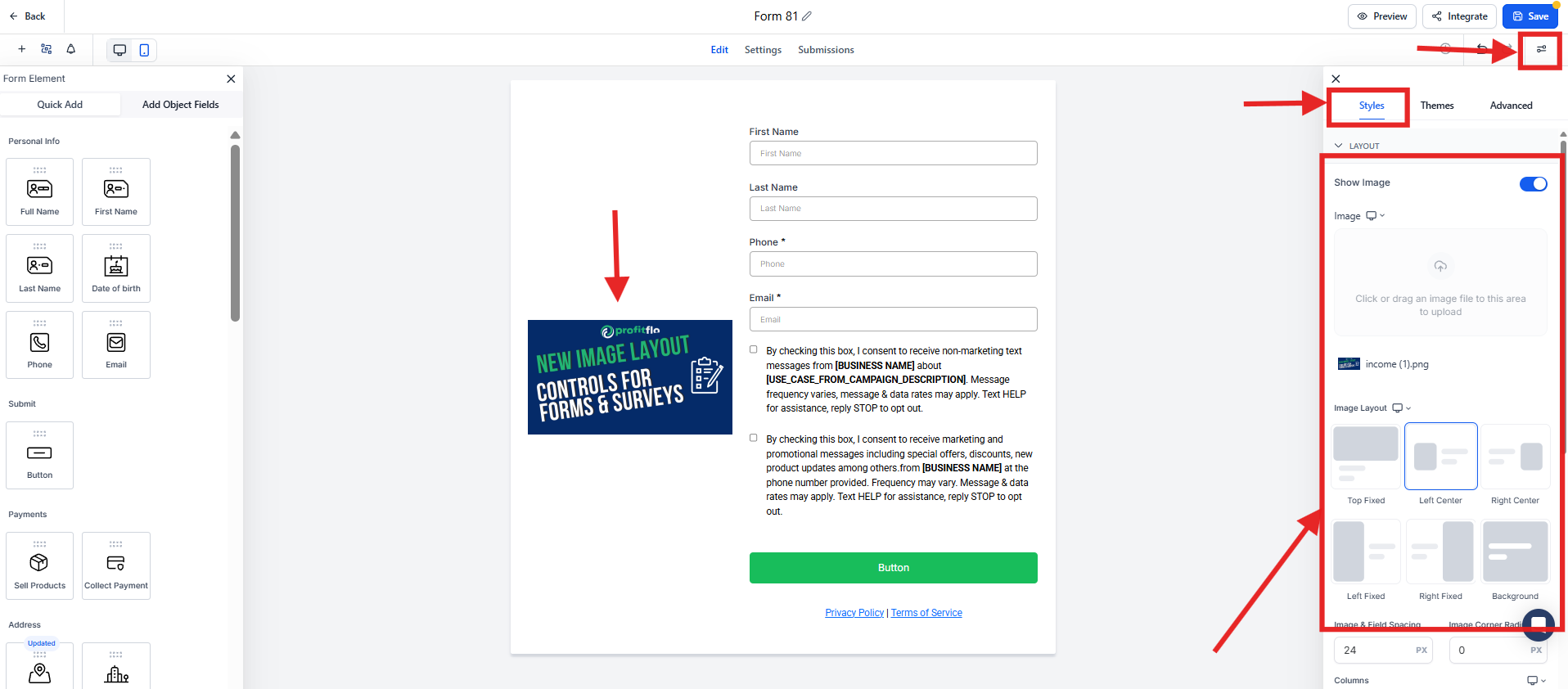
Open the Styles tab
Enable Show Image
Upload or select an image
Choose your Image Layout
Depending on the layout:
Use Corner Radius & Spacing for Center layouts
Use Focal Point for Fixed layouts
Surveys
Go to Sites → Surveys
Create or edit a survey
Add an image using layout settings (same as forms)
To customize a specific slide:
Open the slide
Go to Settings
Under Image Layout Settings, choose Independent
Now you can apply a unique image or layout to that slide.
📌 Important Notes
Corner Radius and Image-Field Spacing only apply to Left Center and Right Center layouts
These settings are not available for Top layout
Fixed layouts (Left Fixed / Right Fixed) use the existing form radius settings and do not support corner radius adjustments
🚀 Why This Matters
🎨 More Design Control
Fine-tune spacing, layout, and styling to match your brand.
🔍 Better Image Visibility
Keep the most important parts of your images in focus.
🧩 Flexible Survey Design
Customize individual slides without affecting the whole flow.
✨ Cleaner, More Professional Look
Create forms and surveys that feel modern, balanced, and intentional.

Solutions
Streamline Sales
Generate More Leads
Build Your Brand
Impress Existing Customers
AutomButtonate Tasks
Company